Concern for AI – Part 3
Concern for AI, Part 3 – How to block Amazon Alexa
As more and more companies integrate AI into our daily functions, many are doing so without the option to disable or remove altogether. Amazon (just today) activated a new side-panel that provides access to Alexa, their AI shopping assistant.
Unnecessary and completely annoying, for the side panels pops out with every single query or refresh of the page. There are a number of plugins available to disable this, but with each plugin you are adding code that has access to one or more levels of your web browser.
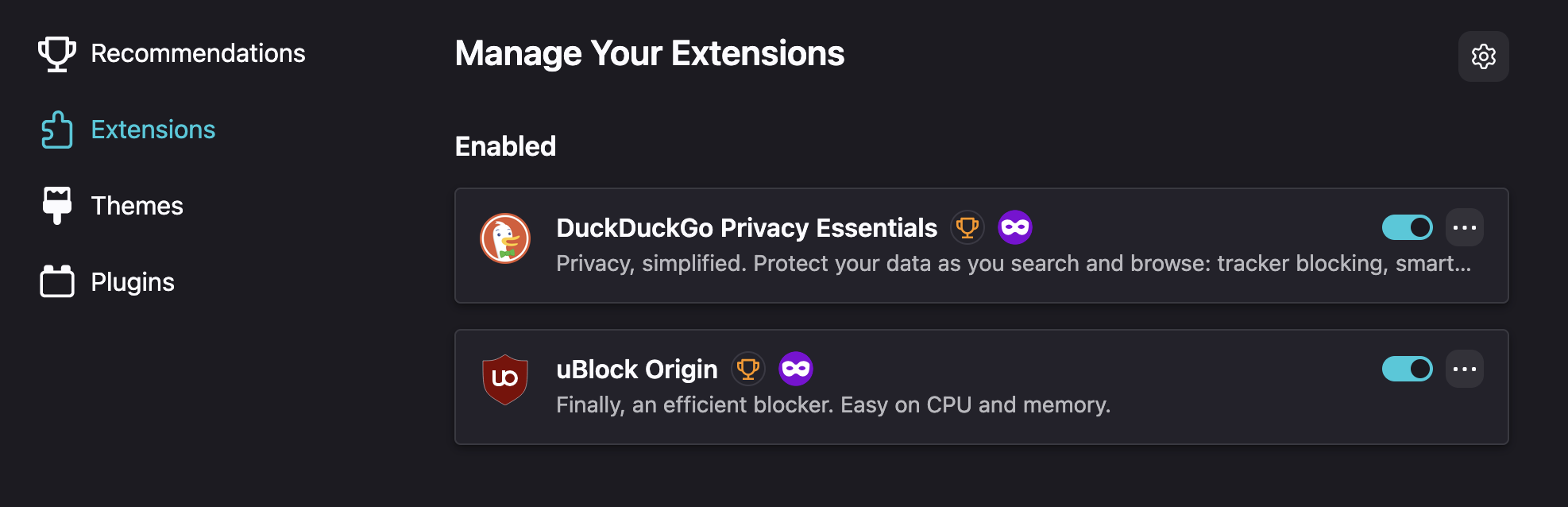
In the prior Part 2 I advised the use of U-Block Origin as a powerful, trusted plugin to all-but eliminate pop-up and in-line ads, while at the same time disabling dozens of cookies loading with any given website that would otherwise capture and sell your on-line experience to the highest bidder.
Using U-Block Origin as a fully customizable front-end, you can add just a few lines of code to disable Alexa at the Amazon website and store. As shared in this post:
If you already have uBlock Origin installed, you can block Rufus without adding another extension. This method works in any browser where uBlock Origin is available, including Chrome, Firefox, Edge, and Brave.
- Click the uBlock Origin icon in your browser toolbar and select the gear icon to open the dashboard.
- Go to the My Filters tab.
- Paste the following lines at the bottom of the list:
www.amazon.com##.rufus-container
www.amazon.com##.rufus-panel-container
www.amazon.com##.rufus-view-filler
www.amazon.com##.rufus-conversation-container
www.amazon.com##.rufus-conversation-container-inner
www.amazon.com##.rufus-container-peek-view
www.amazon.com##.rufus-panel-header-container
www.amazon.com##.rufus-panel-closed-to-peek.rufus-panel-container
www.amazon.com##.nav-rufus-disco
www.amazon.com##.nav-rufus-content
www.amazon.com##.nav-flyout-rufus - Click Apply changes, then reload any open Amazon pages.