Part 1 | Part 2 | Part 3 | Part 4
Concern for AI, Part 2 – Reduce Your Exposure
While Google Chrome (~4.3 billion users), Apple Safari (~890 million), and Microsoft Edge (~280 million) are the top three web browsers in 2026, they are far from the best in terms of your ability to control your privacy, data, and security. Chrome was essentially designed by Google to harvest your personal information then sold to the highest bidder. It provides the least amount of control over your data. Edge and Safari are used principally because they are installed by default, both antiquated, slow, and as with Chrome, provide very little control over data and security. Apple won’t let you uninstall Safari, but you can choose to not use it.
Choose a Better Browser
There are many high quality alternatives to the aforementioned browsers. Some commercial products, some open source with decades of solid programming, a strong user base, and community support. Opera, Brave, DuckDuckGo, and many more (PC Magazine review).
Firefox is my personal best. It has been around for two decades, is 100% open source; is fast, updated regularly, and provides a plethora of options for customization and on-line security. Why open source? “Open source” means the source code that makes the whole thing run is not proprietary. In fact, it can be viewed by anyone, anywhere, at any time. While not completely impervious to malware, most hackers and bad guys just don’t waste their time trying to impose ill-intending code in something that will too-soon be discovered. This is the very foundation of Linux and tens of thousands of world-class applications such as LibreOffice, Blender, GIMP, and Firefox.
- Download and install Firefox.
Installing a second or third web browser does not remove your current application on your desktop, laptop, or phone. Rather, you are installing an optional new browser to use along side or as your new, preferred and default application. And if you elect to retain Firefox, here are a few steps that will help set you in motion with the least down-time.
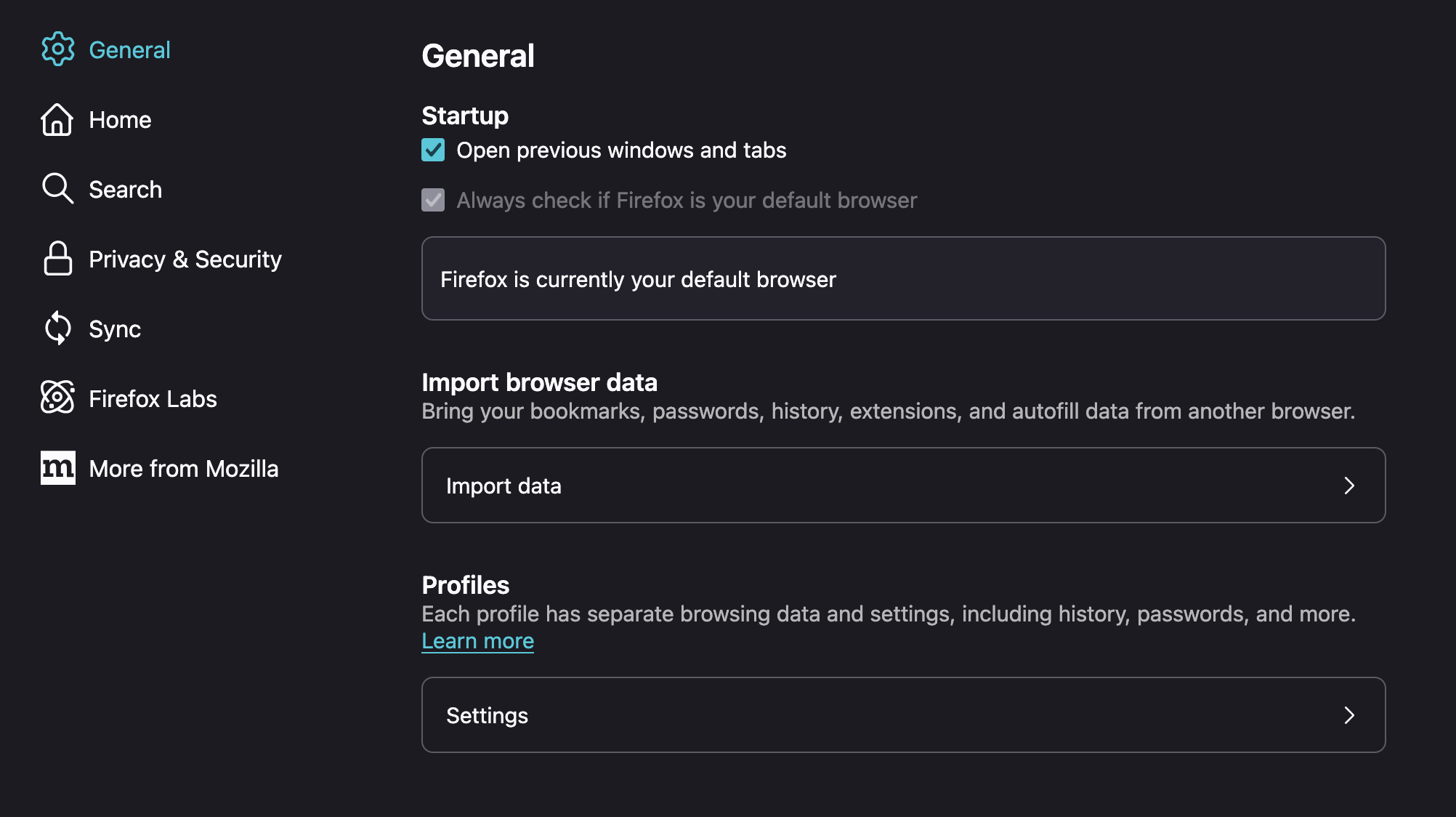
- Set Firefox as your default browser.
You can choose to set Firefox as your default browser during installation, or from your Mac, Linux, or Windows Settings (search for “Browser”). Even if set to default (which means that when you click on a link in an email or PDF, this is the browser that will open), you can right-click and choose a different browser at any time.
- Copy your bookmarks and data
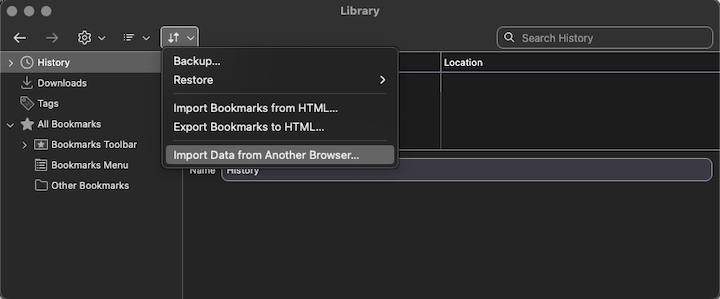
If you are ready to commit to Firefox, copying your bookmarks and data allows you to pick-up where you left-off with your prior web browser. The option to copy your bookmarks should be presented to you during install or at first activation. Else, go to the Bookmarks menu in Firefox, select “Manage Bookmarks”, and then under the ↑↓ menu you can import just the bookmarks, or all data including search history and passwords.
Choose a better search engine
Google’s search engine is for many users, completely overwhelming, increasingly so with the introduction of default AI summaries and control. Furthermore, Google was designed to harvest data about what you search for, when, and from where&mdashit gathers as much information about you within a murky legal framework. Your data is captured and sold such that you can be targeted for advertising in just about all you do, everywhere. For some, this is just a normal part of the internet. For many, it is unacceptable.
Fortunately, there are a number of alternative search engines (PC Magazine review) that do not capture nor sell your search data. DuckDuckGo is the most popular alternative that does NOT collect or sell your data. Even if you want to use AI in your on-line searches, DuckDuckGo eliminates the harvesting and sale of your personal information.
- Open the Firefox Settings
- Select Search on the left, then
- Select Default search engine
- Select DuckDuckGo
- De-Select all other search engines you do not wish to use.
Search Free from AI
Tired of your search engine presenting an AI summary when all you want is to get to the desired source? Don’t trust the results of the AI summary? Miss the simplicity of simple searches? You can disable all AI search functions quickly and easily.
- Open the Firefox Settings
- Select Search on the left, then
- Select Additional search engines
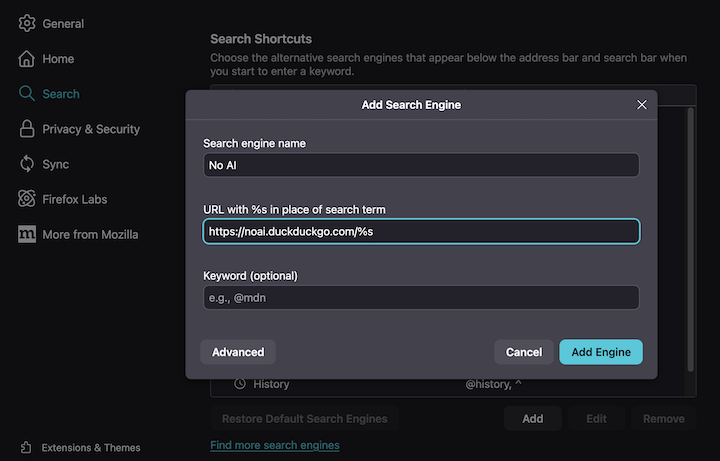
- Select Add search engine
- Enter “https://noai.duckduckgo.com/%s” exactly as presented here
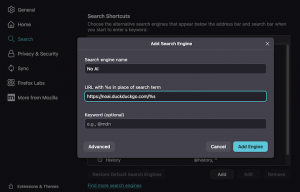
- Save as “No AI” (or whatever you want to call it).
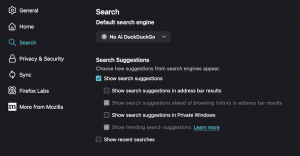
- Go back to the top of the Search page and select “No AI” as your default Search Engine.
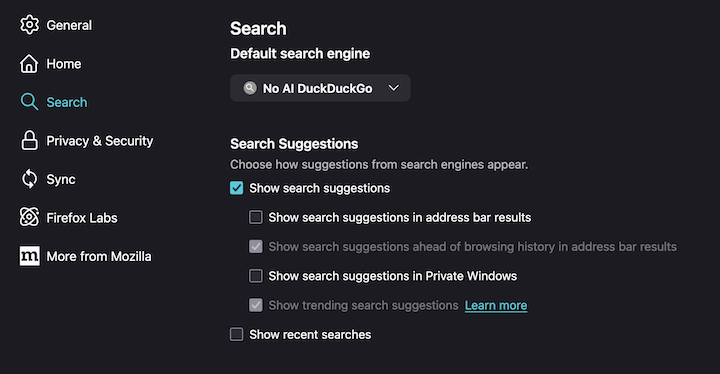
Disable all Automated AI Functions in Firefox.
- Open the Firefox Settings
- At the top, search for “AI” then disable all AI related functions that you do not desire.
Increase the Security of your Web Browser
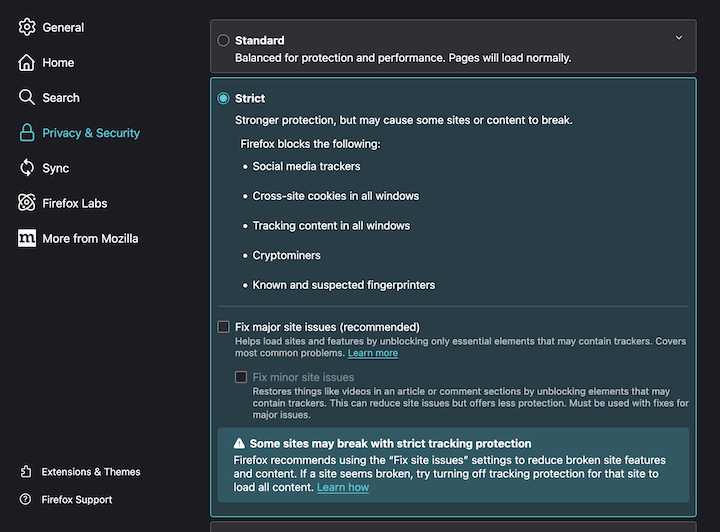
- Open the Firefox Settings
- Under Privacy and security, set Firefox security to Strict:
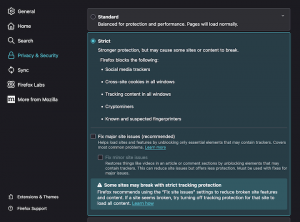
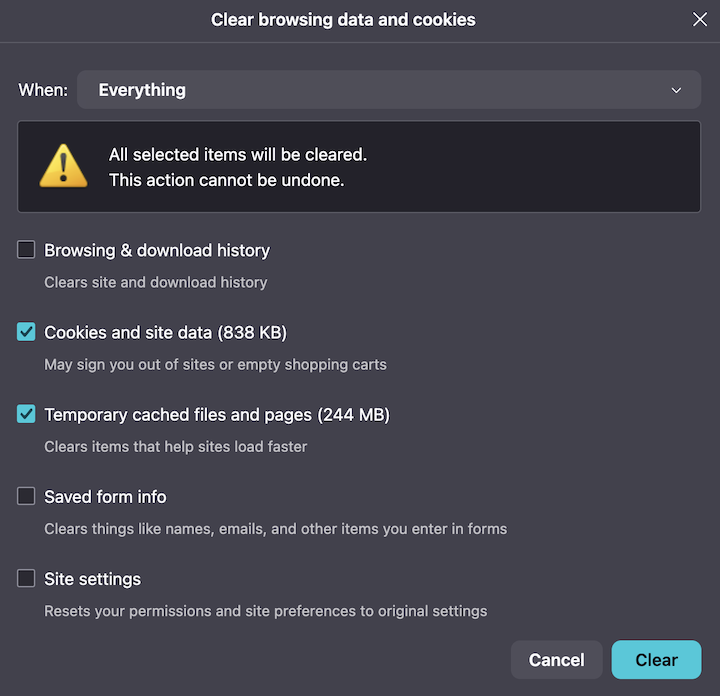
- Regularly clear your web browser cache
The browser cache holds a great deal of information. While its primary function is to keep a local copy of website pages such that if you visit that page again the browser can load the majority, even all of the data (following a brief comparison of the website as it was when last visited versus when you return) immediately from your local computer which is exponentially faster than retrieving all of the data from the internet again.However, the cache is also a rich data mine, a place where a “cookie” (locally stored script) can learn which website you visited just prior, your preferences for on-line shopping, and in some instances, far more personal data. Therefore, it is best if you clear the cache on a regular basis—ideally once each day with the close of your browser (except that most people don’t shutdown their laptops very often, which is in and of itself a problem), worst case once each week.
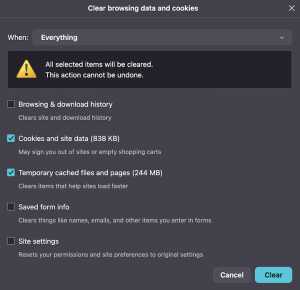
- Select Privacy and security
- Select Additional protections
- Select Tell websites not to sell or share my data
- Select Permissions and Data
- Select Block pop-ups and third-party redirects
- Select Show warning when websites try to install extensions
Never See an Ad Again!
- From the Tools meny, select “Manage Your Extensions”.
- With the “Find more add-ons” function (top), Search for “uBlock Origin”.
- Click on “uBlock Origin” (should be the first link in the list).
- Click “Install” and it should automatically activate.
- Repeat for “DuckDuckGo” and select